Translation
Configure languages for translation
|
|
Item bank managers configure languages to allow projects to support item translation. When languages are configured for an item bank, items in any project within that item bank can be translated to those languages.
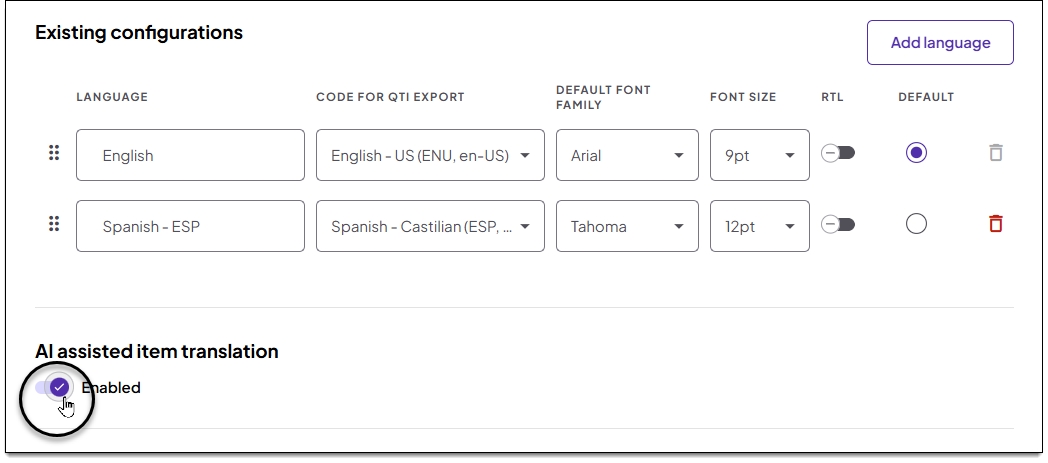
 The AI-assisted item translation setting ↓ must be enabled to allow item translation for projects in the item bank.
Add a language
- On the Item bank configurations page, click the Language configuration tab.
- Review the Existing configurations section which shows all languages currently configured for the project.
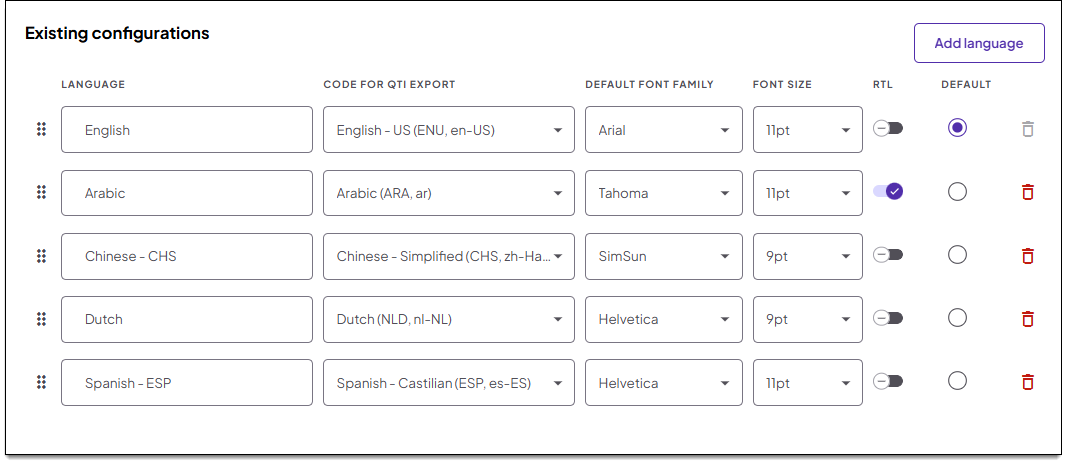
- To add a language that is not yet configured, click Add language.
- A blank row is added. Input the following details:
- Language: Type a name for the language, up to 30 alphanumeric characters. The name must be unique within the item bank.
- Code for QTI export: Select the language code.
- Default font family: If desired, change the default font for authoring items translated to this language.
- Font size: If desired, change the default font size for authoring items translated to this language.
- RTL: Turn this option on
 to specify that the language text is RTL (Right-to-Left, or written and read from right to left). The text alignment will be right, and the cursor movement for sentences and alphabetic characters will be right to left.
- Default: Select this option to make the associated language the default language for the item bank when authoring new items.
- Click Save.
- The language can now be selected for new translations or used in the translation glossary.
Remove a language
|
|
- In the Existing configurations section, click
 for the desired language.
- Click Save.
- The language can no longer be selected for new translations.
Enable or disable item translation
|
|
- To enable item translation, turn on the AI-assisted item translation toggle to enable translation of items for all projects in the item bank.
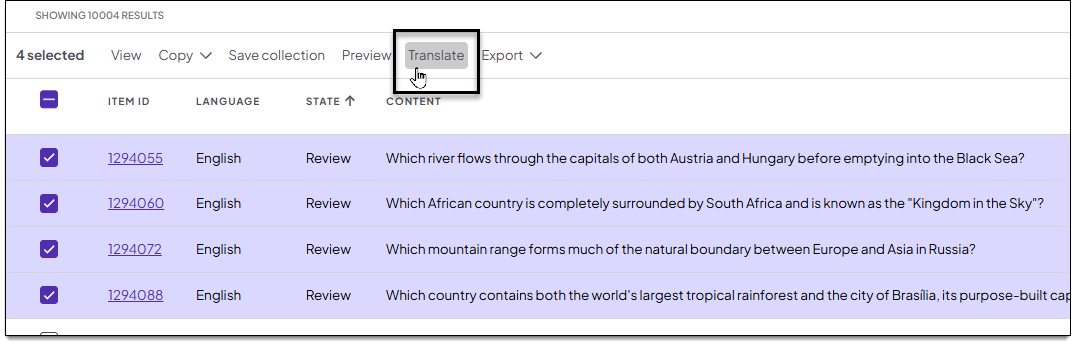
- The Translate option will be available to users in the Search toolbar.
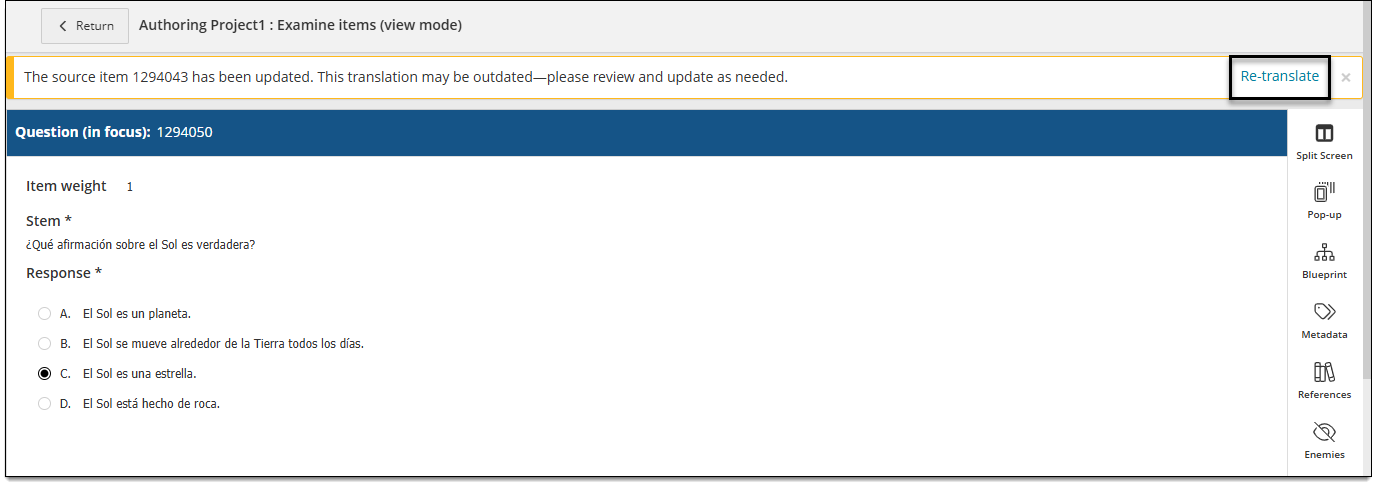
- The Re-translate option will be available in Authoring when a translated item's source has been modified:
- The Translate option will be available to users in the Search toolbar.
- To disable item translation, turn off
 the AI-assisted item translation toggle.
- This disables item translation for all projects in the item bank. The Translate option will not be available to users in the Search toolbar, and the Re-translate option will not be available when source items are modified.
- Click Save.
Pearson Proprietary and Confidential